
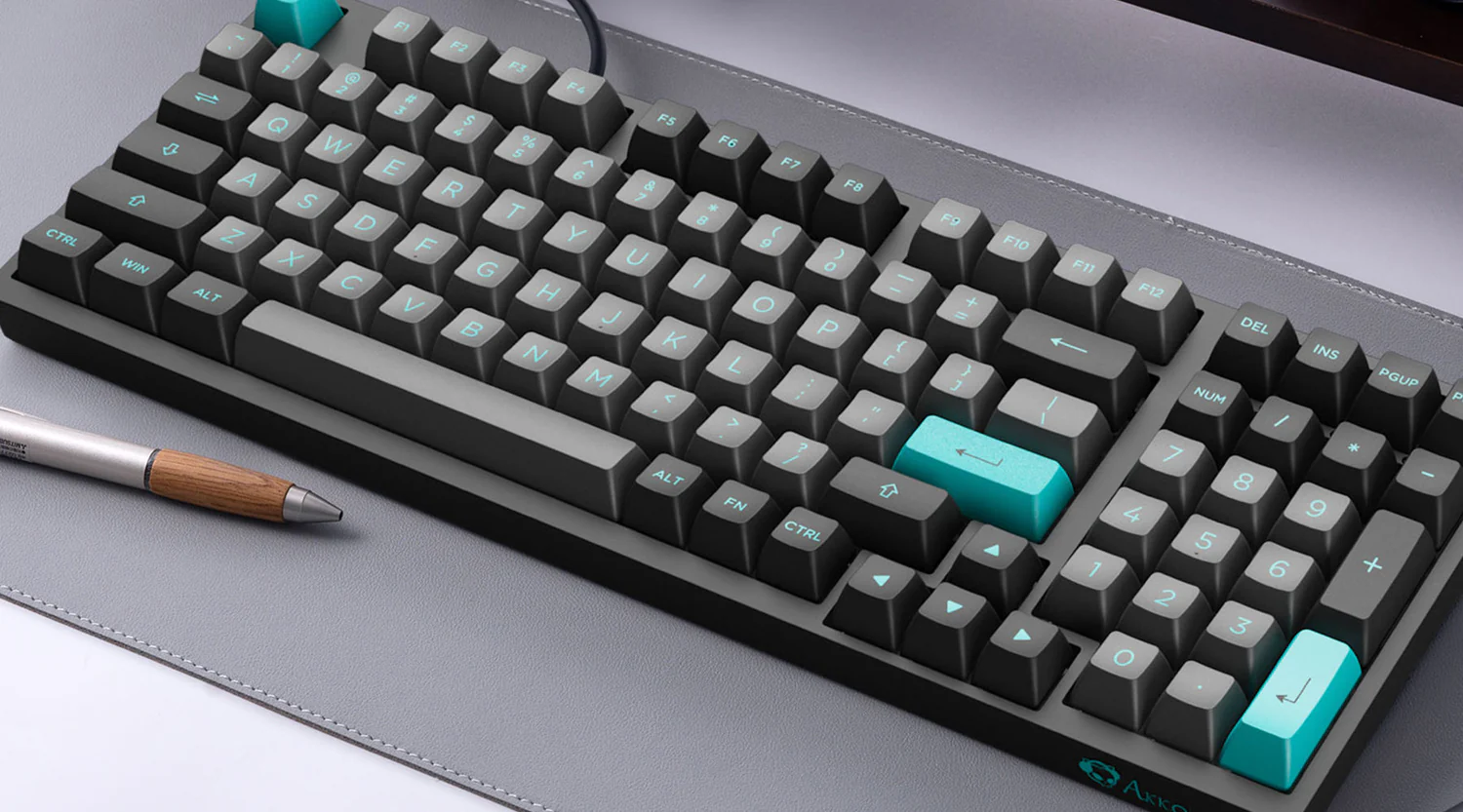
A keyboard is one of the tools most people interact with the most each day. Yet it often remains set to default settings that were never designed around personal work habits. Small adjustments can reduce friction, shorten repetitive tasks, and make typing feel smoother throughout the day.
Keyboard personalization focuses on adapting layout, shortcuts, input tools, and typing behavior to the way you actually work. The idea is simple. The less time you spend correcting, switching, or repeating actions, the more attention you keep on the task itself.
This guide walks through practical ways to use keyboard personalization to improve daily productivity without complicated setups. Each method is small on its own, but together they create a workflow that feels faster and more natural.
Choosing the right input method for your workflow
For many people, the first step in keyboard personalization is selecting an input system that matches their language needs and typing habits.
This becomes especially important when working with multilingual text, specialized characters, or predictive typing tools. Input software can dramatically change how quickly words appear on the screen.
One widely used app for PC is 搜狗输入法 (Sogou input method), a popular tool designed to improve typing efficiency through predictive input, phrase recognition, and intelligent word suggestions. Many professionals use it when working across Chinese and English text because it reduces the number of keystrokes needed to form complete phrases.
Input tools like this help users focus on writing ideas instead of repeatedly typing the same structures. Over time, the system learns common phrases and patterns, which speeds up daily tasks such as messaging, documentation, or research.
Choosing the right input method can instantly make typing feel more responsive and intuitive.

Customizing keyboard shortcuts for repetitive tasks
Once the input method is optimized, the next step is identifying tasks that repeat throughout the day.
Keyboard shortcuts eliminate unnecessary mouse movement and reduce the time required to perform routine actions. Many applications allow users to assign custom shortcuts, making it possible to tailor controls to personal habits.
Here are some practical examples of shortcuts worth customizing:
- Opening frequently used apps or folders
- Formatting text in writing software
- Switching between workspaces or browser tabs
- Copying structured templates into documents
- Triggering automation tools or scripts
Shortcuts become particularly powerful when tied to daily workflows. For instance, a content creator might create quick commands for inserting headings or formatting quotes.
A developer might use shortcuts for compiling code or switching terminals.
The goal is simple. If an action happens dozens of times per day, it should ideally require only one quick keyboard combination.
Optimizing layout and key mapping
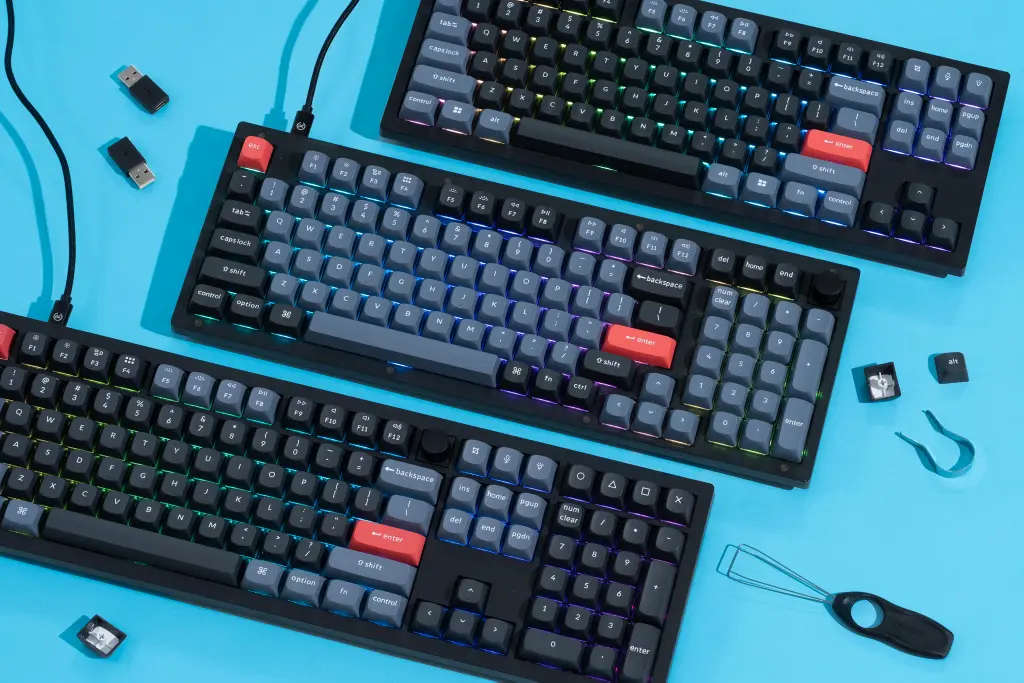
Some productivity issues come from physical keyboard layout rather than software behavior. Standard layouts are designed for general use, but they may not suit every type of work.
Reassigning keys or adjusting layouts can improve comfort and efficiency, especially during long typing sessions.
A few layout adjustments many professionals experiment with include:
- Remapping rarely used keys to useful commands
- Moving modifier keys for easier thumb access
- Adjusting function keys for software specific controls
- Using compact layouts to reduce hand movement
Did you know?
Studies on typing ergonomics show that reducing finger travel distance can improve typing speed while also lowering strain during extended work sessions.
Many operating systems now allow simple key remapping through accessibility or keyboard settings. Dedicated keyboard software can expand these options even further.
Small adjustments often feel unusual at first, but within a few days they can become second nature.
Using predictive typing and text expansion
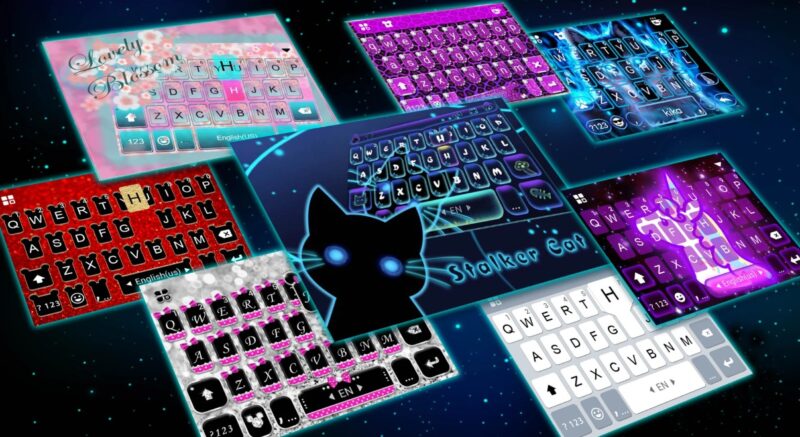
Another powerful form of keyboard personalization involves predictive typing and text expansion.
These features reduce the need to repeatedly type long words, phrases, or email responses. Instead, a short trigger automatically expands into the full text.
For example, typing a few letters can instantly generate longer sentences used frequently in communication or documentation.
Some typical uses include:
- Expanding short abbreviations into full email replies
- Inserting signatures, greetings, or templates
- Generating commonly used technical explanations
- Completing complex terminology automatically
Important note
Text expansion tools can save significant time when used consistently. Many professionals report saving several hours per week after automating repetitive typing tasks.
Predictive typing systems also learn patterns over time. This means the software gradually adapts to your vocabulary and writing style.
As a result, the keyboard begins to assist your thinking process instead of slowing it down.
Creating a personalized shortcut system
When multiple customization techniques are combined, it helps to organize them into a simple system. Random shortcuts often lead to confusion later.
A structured approach makes keyboard personalization easier to remember and maintain.
The following table shows a practical framework many users adopt.
[su_table responsive=”yes”]
|
Shortcut Type |
Example Use |
Productivity Benefit |
| Navigation shortcuts | Switching between apps | Faster multitasking |
| Formatting shortcuts | Headings or text styles | Cleaner documents quickly |
| Automation triggers | Text expansion commands | Reduced repetitive typing |
| System controls | Volume, brightness, apps | Less interruption while working |
[/su_table]
After creating this structure, consistency becomes the key factor. Using similar patterns for shortcuts across applications helps your brain learn them faster.
Once memorized, these shortcuts become almost automatic during work.
Avoiding common mistakes in keyboard personalization
While keyboard customization can significantly improve daily productivity, a few mistakes can reduce its effectiveness.
One common issue is adding too many shortcuts at once. When every key combination changes, the system becomes difficult to remember.
Another mistake is ignoring ergonomics. Productivity improvements should never come at the cost of comfort or long term hand health.
A few helpful guidelines include:
- Introduce new shortcuts gradually instead of all at once
- Keep similar commands grouped with similar key combinations
- Avoid overly complex combinations with four or more keys
- Test changes for a few days before adding more customization
These practices help maintain a balance between flexibility and simplicity.
Keyboard personalization should feel supportive, not overwhelming.
Building a keyboard setup that supports focus
Daily productivity often depends on maintaining uninterrupted concentration. Constant context switching breaks that focus and slows down work.
Keyboard personalization helps reduce these interruptions. Tasks that once required several steps become quick and almost automatic.
Over time, these small improvements create noticeable momentum during the workday. Typing becomes smoother, navigation becomes faster, and repetitive actions disappear into the background.
The most effective keyboard setups evolve gradually. Start with the adjustments that remove the most friction from your daily workflow.
Then continue refining the system as your habits develop. When the keyboard truly matches the way you work, productivity improvements follow naturally.